Tuesday, 24 April 2012

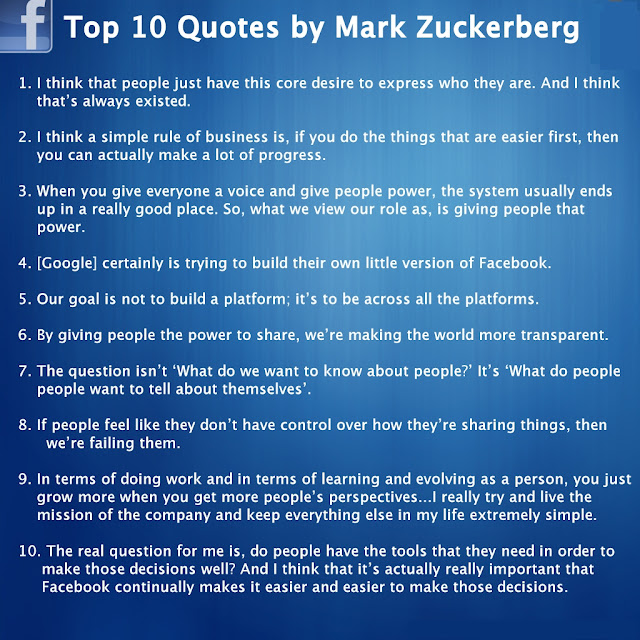
10 Standout Quotes by Mark Zuckerberg [infographic]

, , 0


Mark Elliot Zuckerberg (born May 14, 1984) is an American computer programmer and Internet entrepreneur. He is best known for co-creating the social networking site Facebook, of which he is chief executive. It was co-founded as a private company in 2004 by Zuckerberg and classmates Dustin MoskovitzEduardo Saverin, and Chris Hughes while they were students at Harvard University.Zuckerberg was named four times in Time 100 respectively in 2009 as one of the 100 influential people of the world, in 2010 as Time magazine's Person of the Year, in 2011 as one of the 100 influential people of the world and in 2012.


For many users, Facebook is simply a space to socialize with friends and raise digital farms. But recreational utility is far from the limits Zuckerberg — and many others — see for the social network, which unites more than 800 million users worldwide.
Facebook is a space for exchanging ideas, providing a check on authority and pushing boundaries. To create the website that facilitates such grandiose objectives, Zuckerberg wants investors to know he encourages his employees to constantly take risks, work quickly and focus on potential impact.
Here are Some of his Quotes :.




Monday, 23 April 2012

Add a Custom Facebook Like Box for Blogger

, , 0


Want to Get More Facebook Fans For your Blog ! Then facebook like box is the best way to get more Facebook fans.it helps your Readers to like your Facebook Fan Page Directly From your Blog.So add this Cool Facebook Like Box to your Blog ! Just Follow the Below Steps :.


Add a Custom Facebook Like Box for Blogger :.


First Login to your Blogger and Now click the Below Button :.


Remember Now You Have to Change the Facebook Page Id 


by Default i have kept this code "183713358413255".


After Clicking the Above button You will See the page like Below :.

Click on Edit Content Link to Enlarge the TExt Area And Now Replace Your Facebook Fan Page id .

To Find Your Facebook Fan Page ID ,Use the Widget Below To get the Id

Now After Getting ID you can also Add the Like Box With the Add to blogger button Above Just Enter your Facebook Fan Page ID And Click on Add to Blogger .that's it Your Widget Will be Automatically Added to Blogger.


Saturday, 21 April 2012

Add a One-Time Pop-Up Like Box Widget

, , 0


Hai Friends ! Well Here is a New Facebook Like Pop up Box widget version 2 With a Close button on top And With a Black Them Looks Quite good.and Makes your blog Look like More Professional.Hope You all like it and Share this With your Friends.So my tutorial Starts Here:.


One-time POP Up Like Box:.


First Login to Blogger < Dashboard


Now Click the Below Add to Blogger Button


Now Your Widget Will be Added Automatically.But make Sure to Replace the Facebook link with your's


Make Changes:-


After Clicking on Add to Blogger button You will see a page like in Below ;.


Now Click on EDIT CONTENT

now you will see some Codes now Replace Computer tricks in the Code to your Facebook Page Link
Make sure that You've Replaced Your Facebook Id

And After Changing Then Save Your Widget and Click on Add widget.Thats it .No you're Done.Enjoy


Add Facebook Send Button to Wordpress And Blogger Blog

, , , 0


We know that Facebook has introduced Send button which is used to send link or content or any type of information to Our Friends on Facebook and Facebook Pages.so in this Tutorial iam going to tell you How to Add Facebook Send Button Wordpress | blogger Blogs. 


Here is the Small Facebook Send Button :


Add Facebook Send Button For Wordpress :.


Step1: Go to Facebook Developers page -- Click here to go


Step2: 
Type in you URL and Choose Desired Font and Color scheme and Now at the               Bottom Click on Get Code


Step3:When you Click on Get Code.you'll See a Plugin code on a popup Box as shown Below:.

Step4: Now Copy the Code and Open Wordpress and Under Appearance go to Editor and open   "Single.php"   Page .

Step5: Now Search for   <div class="entry">

Step6: Now paste the Copied Code Below The Div Tag .
Step7: That's it Now you're Done.

Add Facebook Send Button to Blogger :.

Follow the Above mentioned Steps till Step3

Step4: Now open Blogger Dashboard > Design > EDIT HTML and Check Expand Widgets Template

Step5: Now Check for the Code  <div class=’post-body entry-content’>

Step6: Now Paste the Facebook code Below it And Save your template.

Now you're done.So in this way You can Add Facebook Send Button to Your Wordpress and Blogger Blog.


Download Facebook Template For Blogger | Letsenjoy | Tricks and Tips

, , , 0


Hello Friends. Today I Have a New theme to share with you all ! ie Facebook theme rather called Facebook Template.


So here iam Providing Two Templates Each one doesn't Compared together :.


Just look at the Screenshot Below:.


Download the Above-Facebook Template   --<< Click to Download.♥

Specifications of this Template:.

  • Awesome header with 2 navigation bar.
  • Beautiful slider to display 5 featured posts
  • Post thumbnail featured added by default
  • Automatic Pagination Added
  •  [read more] featured added by default
  • Navigation menu added to footer 

2) Here's another Facebook Template --Look at the Screenshot Below:.


How to add it to Blogger :.


First Download the Facebook Template from above Link and Extract it using Winrar
Now Sign in to your Blogger Account then Go to Dashboard.
Then Go to Design < EDIT HTML 
Now Click on the Choose File Button and Select the Extracted File and After Choosing Just Click on Upload.Just look at below Screenshot :.


Now Click on Upload,thats it Now After uploading You can See the Change in your Blogger. I mean Your "Facebook" Blog. rather called "Faceblog" Now.That's it Friends.Have Fun.


If you like this post on Facebook Template then please Take few Seconds to Share this post.


Do You 
This Post